 Ready to grow?
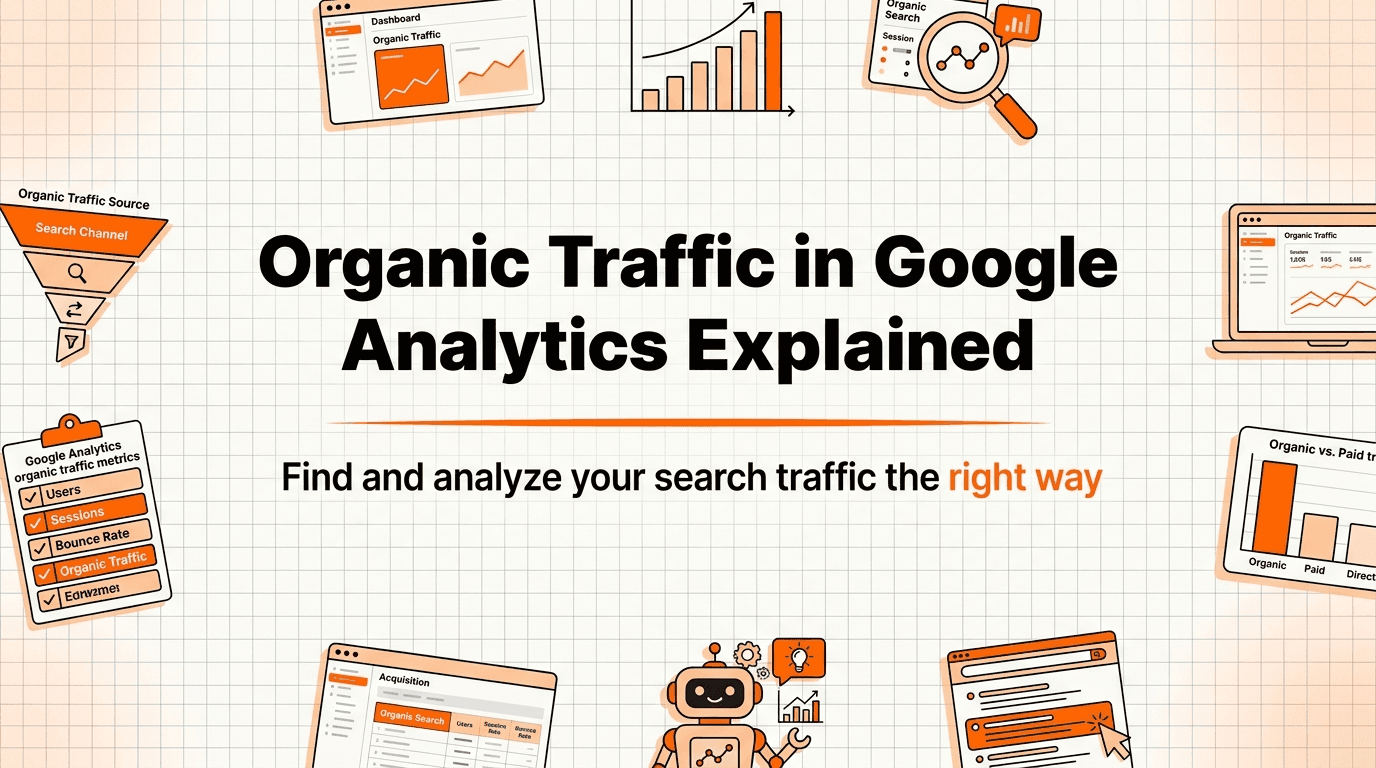
Understanding your website's organic traffic is foundational to measuring SEO success. Yet countless marketers struggle to accurately track and interpret this critical metric in Google Analytics. Whether you're using the newer GA4 or still transitioning from Universal Analytics, knowing where to find organic traffic data and how to analyze it properly can transform your SEO strategy from guesswork into data-driven decision making.
This comprehensive guide will walk you through everything you need to know about organic traffic in Google Analytics, from basic definitions to advanced segmentation techniques that reveal actionable insights about your search performance.
What Is Organic Traffic in Google Analytics?
Organic traffic refers to visitors who land on your website after clicking on unpaid search engine results. When someone searches for a query on Google, Bing, or another search engine and clicks on your website from the natural (non-advertised) listings, Google Analytics classifies this visit as organic traffic.
This traffic source is fundamentally different from paid search traffic (which comes from ads), direct traffic (users typing your URL directly), referral traffic (clicks from other websites), or social traffic (visitors from social media platforms). Organic traffic represents users who discovered your content through search engines because it matched their search intent.
In Google Analytics, organic traffic is tracked through UTM parameters and referrer data that identify the source of each session. When a search engine refers a user to your site, it passes along referral information that Analytics uses to categorize the traffic appropriately.
Why Most People Track Organic Traffic Wrong
The biggest mistake marketers make is looking at vanity metrics without context. Simply watching your organic traffic number go up or down doesn't tell you whether your SEO efforts are actually working. Many people fall into these common traps:
- Ignoring traffic quality in favor of quantity
- Not filtering out bot traffic and spam referrals
- Failing to segment by landing page or user behavior
- Not connecting organic traffic to actual business outcomes
- Misattributing direct traffic that's actually organic
Another critical error is not accounting for the increasing amount of organic traffic that gets misclassified as direct traffic due to secure HTTPS referrals, mobile apps, and dark social sharing. This means your organic traffic numbers might be significantly understated if you're only looking at the surface-level data.
Additionally, many marketers don't establish proper baseline metrics before launching SEO initiatives, making it impossible to accurately measure the impact of their efforts. Without understanding seasonal fluctuations, algorithm updates, and competitive dynamics, you can't separate correlation from causation in your traffic data.
How to Find Organic Traffic in Google Analytics 4 (GA4)
Google Analytics 4 has a completely different interface and data model compared to Universal Analytics, which initially confuses many users. Here's the step-by-step process to find your organic traffic data in GA4:
First, navigate to Reports in the left sidebar, then click on Acquisition to expand that section. You'll see two key reports: User acquisition and Traffic acquisition. The Traffic acquisition report shows all sessions broken down by source/medium, which is where you'll find your organic search data.
In the Traffic acquisition report, look for the 'google / organic' row (or other search engines like 'bing / organic'). This shows you the number of sessions that came from organic search. You can click on this row to drill down into more specific data about these organic sessions.
To get more granular insights, you can add secondary dimensions like Landing page, Device category, or Country to understand how different segments of your organic traffic perform. The default metrics shown include Users, Sessions, Engagement rate, and Conversions—all crucial for understanding traffic quality.
For a quick overview, you can also use the Exploration section to create custom reports. Navigate to Explore, create a new Free form exploration, and add 'Session source/medium' as a dimension and your preferred metrics as values. Then filter for rows containing 'organic' to isolate organic search traffic.
How to Find Organic Traffic in Universal Analytics (Deprecated)
While Universal Analytics stopped processing data in July 2023, many marketers still reference historical data from this platform. Understanding where organic traffic was located in UA helps with year-over-year comparisons and historical analysis.
In Universal Analytics, you would navigate to Acquisition > All Traffic > Channels to see organic search as one of the default channel groupings. This report showed total sessions, users, bounce rate, and conversion data for organic traffic alongside other channels.
For more detailed source information, you would go to Acquisition > All Traffic > Source/Medium and look for 'google / organic', 'bing / organic', and other organic search combinations. This view allowed you to see which search engines were driving the most traffic to your site.
The Acquisition > Search Console section provided even deeper insights when you linked your Google Search Console account, showing actual keywords (for logged-in Google users), impressions, click-through rates, and average position data that complemented the organic traffic metrics.
Setting Up Custom Reports for Organic Traffic Analysis
Default reports in Google Analytics provide good baseline information, but custom reports unlock the real analytical power for organic traffic monitoring. These tailored views help you track the specific metrics that matter most to your business goals.
In GA4, use the Explorations feature to build custom organic traffic dashboards. Create a free form exploration and add dimensions like Landing page, Session source/medium, and Device category. For metrics, include Sessions, Engaged sessions, Average engagement time, Conversions, and Total revenue if you have ecommerce tracking enabled.
Apply a filter to show only sessions where 'Session medium' exactly matches 'organic'. This isolates all organic search traffic regardless of the search engine. Save this exploration to your workspace for quick access during weekly or monthly reviews.
Consider creating segment-specific reports for different aspects of your organic traffic performance. One report might focus on conversion paths for organic users, another on landing page performance, and a third on new versus returning organic visitors. This segmented approach provides clearer insights than trying to analyze everything in one massive report.
You should also set up cohort analysis reports to track how organic users acquired in different time periods behave over time. This reveals whether your content velocity improvements are attracting higher-quality visitors who engage more deeply with your site.
Organic Traffic Metrics That Actually Matter
Total sessions from organic search is just the starting point. To truly understand your SEO performance, you need to track a combination of quantitative and qualitative metrics that reveal both traffic volume and visitor quality.
Engagement rate (in GA4) or bounce rate (in UA) tells you whether organic visitors find what they're looking for. A high engagement rate indicates that your content matches search intent, while a low rate suggests a disconnect between the keywords you rank for and the content you provide.
Average engagement time shows how long organic visitors spend actively interacting with your site. This metric differs from simple session duration because it measures actual engagement rather than just time with a browser tab open. Higher engagement time typically correlates with better content quality and relevance.
Conversion rate for organic traffic is perhaps the most important metric because it directly ties search performance to business outcomes. Whether your conversions are purchases, lead form submissions, or newsletter signups, tracking the percentage of organic visitors who convert tells you if you're attracting the right audience.
Pages per session indicates how well your internal linking and content strategy encourages exploration. Organic visitors who view multiple pages are more engaged and more likely to convert than those who view only their landing page.
New versus returning organic user ratio reveals whether your SEO attracts fresh audiences or builds loyalty with existing visitors. A healthy balance of both indicates strong topical coverage for discovery and sufficient content depth to bring people back.
How to Segment Organic Traffic by Landing Page
Not all organic traffic performs equally, and landing page segmentation reveals which pieces of content drive the most valuable visitors. This analysis helps you double down on what's working and improve or deprecate underperforming pages.
In GA4, navigate to Reports > Engagement > Pages and screens. At the top of the report, add a filter for Session medium equals 'organic'. This shows you which pages receive the most organic traffic, along with views, average engagement time, and conversions for each page.
Export this data and sort by different metrics to identify patterns. Your highest-traffic pages might not be your highest-converting pages. Landing pages with high traffic but low engagement might need content improvements to better match search intent, while high-converting pages with lower traffic represent opportunities for increased promotion and optimization.
Create segments for different page categories—blog posts, product pages, service pages, guides—to understand which content types perform best for organic discovery. This intelligence should inform your content strategy and help you build topical authority in areas where you see the strongest traction.
Consider analyzing landing page performance by device type as well. Some pages might convert better on mobile while others perform better on desktop, revealing optimization opportunities for responsive design and user experience improvements.
Identifying Organic Traffic Quality vs. Quantity
A common pitfall in SEO is celebrating traffic increases without examining whether those new visitors actually contribute to business goals. Quality traffic—visitors who engage, convert, and become customers—matters infinitely more than vanity metrics.
To assess traffic quality, create a custom segment in GA4 that defines your ideal visitor. This might include criteria like session duration over two minutes, two or more pages viewed, or specific high-value page interactions. Compare the percentage of organic traffic that meets these quality thresholds over time.
Examine the assisted conversions from organic traffic, not just last-click conversions. Many users discover your brand through organic search, then convert through another channel later. Multi-touch attribution models reveal the true value of your organic traffic in the customer journey.
Track the revenue per organic session if you have ecommerce tracking enabled. This metric instantly shows whether increases in organic traffic volume translate to proportional revenue increases. If traffic rises but revenue per session falls, you're attracting less qualified visitors.
Look at retention metrics for organic users. Do they return to your site? Do they subscribe to your newsletter or create accounts? High-quality organic traffic builds an audience, while low-quality traffic consists of one-time visitors who never engage again.
Common Google Analytics Organic Traffic Mistakes to Avoid
Even experienced marketers make critical errors when analyzing organic traffic data. Being aware of these pitfalls helps you maintain data accuracy and make better decisions.
The first major mistake is not excluding internal traffic from your reports. If your team regularly visits your site, these sessions can inflate organic traffic numbers and skew metrics like engagement rate. Set up IP address filters in GA4 to exclude your office networks and common team member locations.
Another common error is comparing incompatible time periods. Comparing summer traffic to winter traffic without accounting for seasonality leads to false conclusions. Always use year-over-year comparisons or apply seasonality adjustments when analyzing trends.
Many people forget to account for Google algorithm updates when they see sudden traffic changes. A drop in organic traffic might have nothing to do with your SEO efforts and everything to do with a core update that reshuffled rankings across your industry. Cross-reference traffic changes with known algorithm update dates.
Ignoring mobile versus desktop segmentation is increasingly problematic as mobile search dominates. Your organic traffic might look healthy overall while mobile performance is actually declining. Always segment by device category to identify platform-specific issues.
Finally, many marketers fail to connect Google Analytics with Google Search Console, missing the crucial keyword and impression data that explains why organic traffic changes occur. This integration provides the complete picture of search performance.
How to Track Organic Traffic ROI and Conversions
Ultimately, organic traffic only matters if it contributes to your bottom line. Tracking conversions and calculating return on investment from organic search transforms SEO from a cost center into a measurable revenue driver.
First, ensure you have properly configured conversion tracking in GA4. Navigate to Admin > Events and mark your key actions as conversions—form submissions, purchases, downloads, or whatever actions represent value for your business. Without defined conversions, you can't measure organic traffic effectiveness.
To analyze organic traffic conversions, go to Reports > Engagement > Conversions and add a segment or filter for organic traffic. This shows you how many conversions come from organic search and which specific conversion events organic visitors complete most frequently.
Calculate the value of your organic traffic by assigning monetary values to conversions. For ecommerce sites, this is straightforward—track revenue directly. For lead generation businesses, determine the average customer value and the lead-to-customer conversion rate to assign a value per lead.
To calculate SEO ROI, divide the revenue generated from organic traffic by your total SEO investment (content creation, tools, personnel, link building, etc.). This metric proves the business value of your organic search efforts and justifies continued investment.
Track conversion rate trends over time to ensure your organic traffic quality remains consistent or improves. If your conversion rate declines as traffic increases, investigate whether you're ranking for less relevant keywords or if landing page experience has degraded.
Filtering Bot Traffic and Spam for Accurate Data
Bot traffic and referral spam can significantly distort organic traffic metrics, making your SEO performance appear better or worse than reality. Filtering out this noise is essential for accurate analysis.
Google Analytics 4 includes built-in bot filtering that excludes known bots and spiders. Verify this is enabled by going to Admin > Data Settings > Data Filters and ensuring the Internal Traffic filter is active. GA4 is generally better at bot detection than Universal Analytics was, but it's not perfect.
Monitor for referral spam by regularly reviewing your Traffic acquisition report for suspicious sources. Referral spam often appears as traffic from unfamiliar domains with extremely high bounce rates and zero engagement time. Create filters to exclude these sources from future reports.
Look for anomalies in your organic traffic patterns. Sudden spikes on specific dates with abnormal user behavior (like zero session duration or identical time-on-page for thousands of sessions) typically indicate bot activity. Create segments that exclude these sessions based on their behavioral signatures.
For more sophisticated bot detection, examine user agent strings in your server logs. Legitimate search engine crawlers identify themselves properly, while malicious bots often use fake or suspicious user agents. You can create filters based on these patterns.
Consider using third-party bot detection services if you handle significant traffic volumes or operate in industries prone to competitive scraping. These services provide more sophisticated detection algorithms than Google Analytics' built-in filtering.
Comparing Organic Traffic Performance Over Time
Understanding trends in your organic traffic requires thoughtful comparison strategies that account for seasonality, market changes, and the delayed nature of SEO results.
Year-over-year comparisons are generally more valuable than month-over-month comparisons because they account for seasonal patterns. In GA4, use the date comparison feature to compare the current period with the same period last year. This reveals whether you're genuinely growing or just experiencing seasonal fluctuations.
Create rolling averages to smooth out day-to-day volatility and see clearer trends. Instead of comparing individual weeks, compare 4-week or 13-week averages to identify genuine trend changes versus normal variation.
Segment your comparisons by content age. Older content should maintain or grow traffic as it accumulates backlinks and authority, while new content typically takes 3-6 months to reach peak performance. Comparing all content together obscures these distinct patterns.
Track cohort performance to understand if your SEO improvements are attracting progressively better audiences. Create monthly cohorts of organic visitors and compare their engagement and conversion metrics over equivalent time periods.
Document major changes in your SEO strategy, website structure, or competitive landscape alongside your traffic data. This contextual information helps you understand why traffic changed and whether your actions drove the results or external factors were responsible.
Frequently Asked Questions
What counts as organic traffic in Google Analytics?
Organic traffic in Google Analytics refers to visitors who arrive at your website by clicking on unpaid search engine results. This includes traffic from Google, Bing, Yahoo, DuckDuckGo, and other search engines, but excludes paid search ads, direct visits, social media referrals, and traffic from other websites. Google Analytics identifies organic traffic through referral data passed from search engines when users click through to your site.
Where do I find organic traffic in GA4?
In GA4, navigate to Reports > Acquisition > Traffic acquisition to find organic traffic data. Look for rows labeled with 'google / organic', 'bing / organic', or other search engine combinations. You can also access organic traffic data through the Exploration section by creating custom reports filtered for sessions where the medium equals 'organic'. The User acquisition report shows a similar breakdown focused on new user acquisition rather than all sessions.
Why is my organic traffic showing as direct in Google Analytics?
Organic traffic often gets misclassified as direct traffic due to several technical reasons. When users click links from HTTPS sites to HTTP sites, the referrer information is sometimes stripped away. Mobile apps, email clients, and secure messaging platforms often don't pass referrer data. Additionally, users who have your site bookmarked after initially finding it through search will appear as direct traffic on subsequent visits. Dark social sharing (links shared through private messages) also appears as direct traffic even when the initial discovery was through search.
How do I filter out bot traffic from organic traffic data?
Enable bot filtering in GA4 by going to Admin > Data Settings > Data Filters and activating the Internal Traffic filter. Additionally, review your Traffic acquisition reports for suspicious patterns like extremely high bounce rates, zero engagement time, or unusual geographic concentrations. Create segments or filters to exclude sessions with these characteristics. For more advanced filtering, analyze user agent data in server logs to identify and block malicious bots. Consider using third-party bot detection services for comprehensive protection if you experience significant bot traffic.
What's the difference between organic search and organic social traffic?
Organic search traffic comes from unpaid search engine results when users search for keywords, while organic social traffic comes from unpaid social media posts and shares on platforms like Facebook, Twitter, LinkedIn, or Instagram. In Google Analytics, organic search appears with the medium 'organic' and sources like 'google' or 'bing', while organic social appears with sources like 'facebook.com' or 'twitter.com' and may be categorized under the 'social' channel grouping. Both are unpaid traffic sources, but they represent fundamentally different discovery mechanisms and user intent.
How can I track organic traffic conversions in Google Analytics?
First, configure conversions in GA4 by going to Admin > Events and marking your key actions as conversions (purchases, form submissions, etc.). Then navigate to Reports > Engagement > Conversions and apply a filter or segment for organic traffic by setting 'Session medium' to 'organic'. This shows how many conversions come from organic search. For deeper analysis, use the Exploration tool to create custom reports that show organic traffic conversion paths, time to conversion, and assisted conversions. Assign monetary values to conversions to calculate the actual revenue generated by organic traffic.